

Device Requests
Overview
Section titled “Overview”The ARROW Device Requests system enables organizations to request and manage physical devices and virtual appliances. This comprehensive system handles the entire lifecycle, from initial request through deployment and return.
What You Can Request
Section titled “What You Can Request”- Physical Hardware Devices: Custom Linux-based computers with cellular management via WireGuard VPN
- Virtual Appliances: Downloadable VM images (OVA, QCOW2) for various virtualization platforms
- Wireless Testing Equipment: Optional ALFA wireless cards for wireless penetration testing
Export Compliance
Section titled “Export Compliance”All device requests are subject to U.S. export control regulations and VTEM Labs’ export policies. Certain countries may require additional review or may be prohibited from receiving ARROW products. Please review our Export and Deployment Policy for complete details on country-specific restrictions and compliance requirements.
Important
Requests to restricted countries may incur legal review fees and extended processing times.
Adding Clients to ARROW
Section titled “Adding Clients to ARROW”To request a physical device or a virtual appliance, first ensure that your client has been added to the platform. Click on the Clients tab located in the sidebar, then click the + Add Client button.
Note
Only Admins and Managers can manage clients in the ARROW platform.
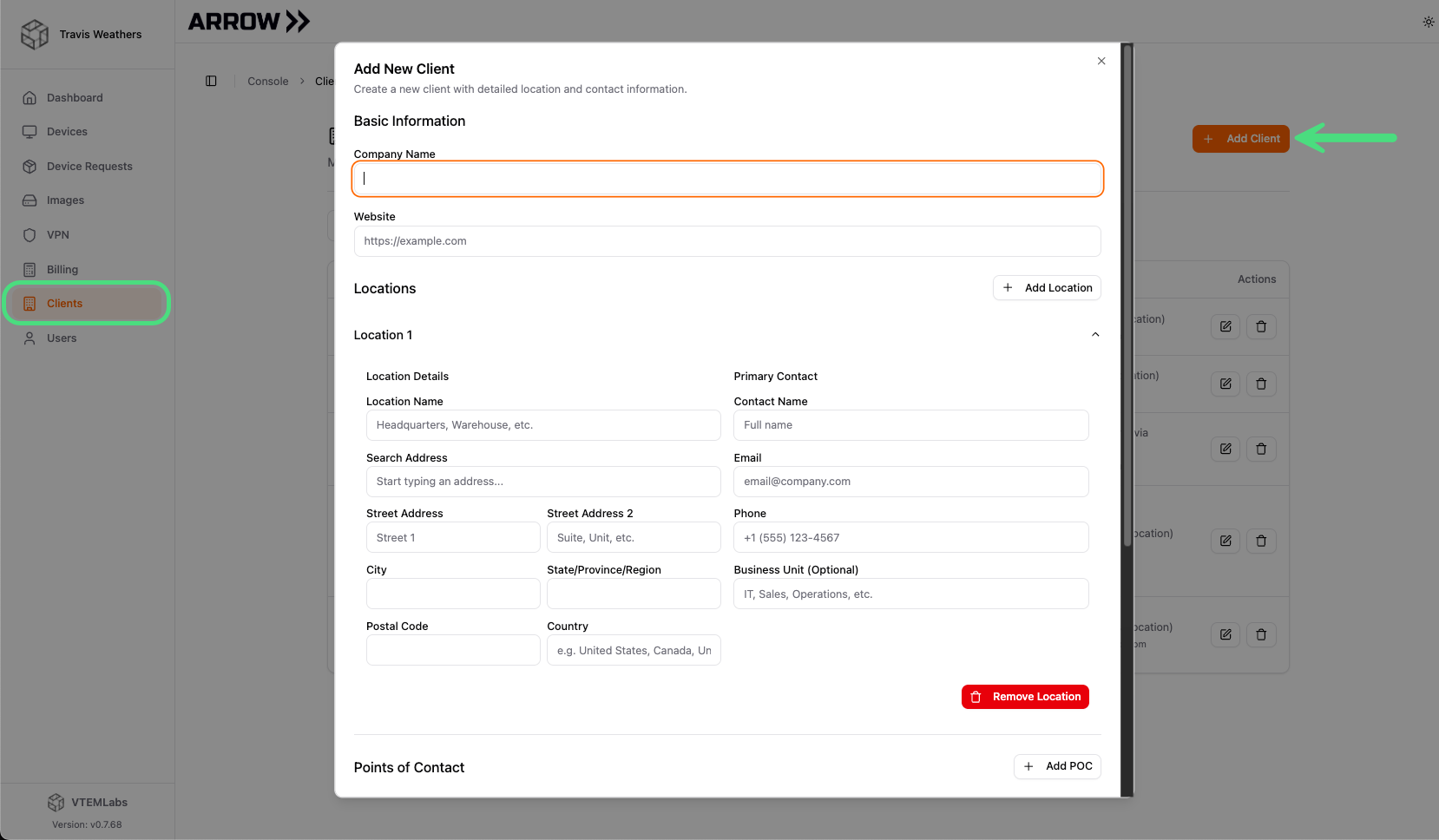 Adding a client to ARROW
You can add multiple locations and points of contact for each client, which is useful when devices need to be shipped to several destinations.
Important
Provide accurate contact information in the Points of Contact section. This is required by UPS and FedEx for certain delivery methods and locations (e.g., international shipments). Failure to provide this data may result in imaging or shipping delays, request rejection, or a device replacement fee.
PoC Dialog Window
Requesting a Device / Virtual Appliance
Section titled “Requesting a Device / Virtual Appliance”To request a physical device or a virtual appliance, navigate to the Device Requests tab in the sidebar and click + New Request. Note: you must add your client to the ARROW portal before making a device request. See Adding Clients to ARROW above for details.
Note
Only Admins and Managers can request devices. This prevents duplicate requests and supports good organizational hygiene.
Physical Device Requests
Section titled “Physical Device Requests”When requesting physical devices, you can only request one device per submission. With the request tab open, populate the following sections:
- Device Type: Physical Device
- Device Specification: ARROW or OBSIDIAN (Coming Soon)
- Include Wireless Card: Indicate whether an ALFA wireless card should be included with the shipment (for wireless penetration testing).
- Client: Select a client from the dropdown (See Adding Clients to ARROW above for details.)
- Delivery Locations: Select the location for the device.
- Request Period: Select the date range of the engagement. VTEM Labs will ship your device with enough buffer to arrive the morning of, or the day prior. You can adjust the request period at any time. The end date is used for tracking and return label generation.
- Opportunity Number (Optional): Reserved for your internal project tracking.
- Notes: Provide any relevant notes for the VTEM Labs team.
- Images: Select the image(s) you would like included in the ARROW Manager’s AppLibrary.
- Consultants: Assign the consultant(s) responsible for delivery of the project.
Important
Physical device requests must be submitted at least 72 business hours prior to the project start date. Last-minute requests may incur an additional $100 logistics charge for Next Day Air Early delivery. Last-minute device requests made after 1 PM Eastern will ship the next business day (no exceptions).
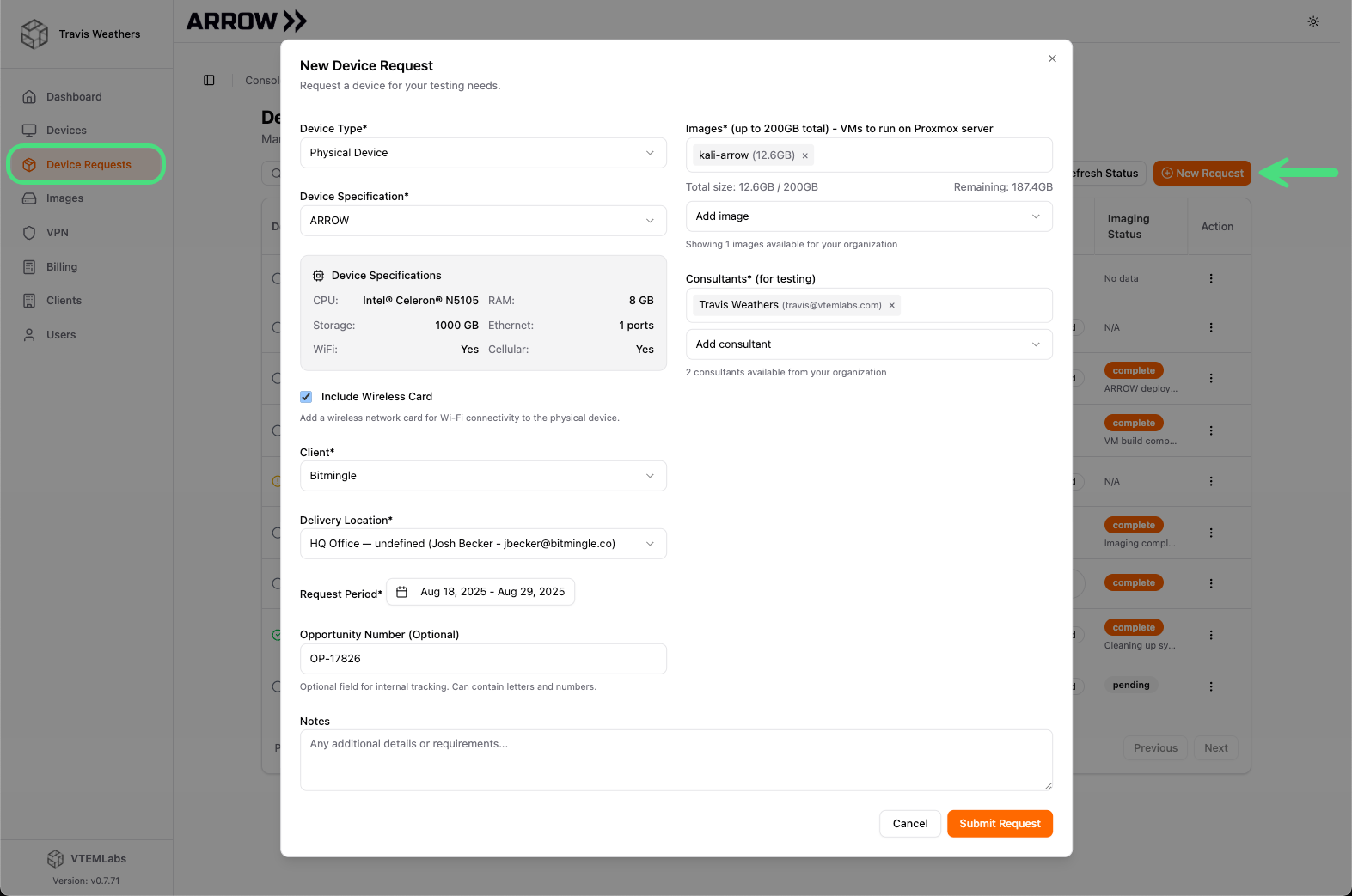 Requesting a Physical ARROW Device
Once the Submit Request button has been selected, it will enter VTEM Labs’ request queue. Once approved, the imaging process will begin. This process takes approximately 20–30 minutes per device for imaging and a manual operational check (Ops Check). After the Ops Check is complete, VTEM Labs will generate shipping labels and package your device for pickup or drop-off. You will receive an email containing the tracking information, which is also available directly in the Device Request page.
Virtual Appliance Requests
Section titled “Virtual Appliance Requests”When requesting virtual appliances, you can request up to 10 VMs per submission. This option is best for locations where VTEM Labs cannot ship physical hardware. With the request tab open, populate the following sections:
- Device Type: Virtual Machine
- Number of VMs: Specify the number of virtual machines required.
- VM Names: Provide a unique name for each virtual machine. We recommend using the deployment location (e.g., US East, West, NYC HQ, NYC Branch XYZ).
- VM Type: Currently supported formats include VMware (OVA), VirtualBox (OVA), and QEMU/KVM (QCOW2).
- Client: Select a client from the dropdown (See Adding Clients to ARROW above for details.)
- Request Period: Select the date range of the engagement. You can adjust the request period at any time. The end date is used for tracking and return label generation.
- Opportunity Number (Optional): Reserved for your internal project tracking.
- Notes: Provide any relevant notes for the VTEM Labs team.
- Images: Select the image(s) you would like included in the ARROW Manager’s AppLibrary.
- Consultants: Assign the consultant(s) responsible for delivery of the project.
Once the Submit Request button has been selected, it will enter VTEM Labs’ request queue. Once approved, imaging will automatically begin. This process takes approximately 10–15 minutes per image.
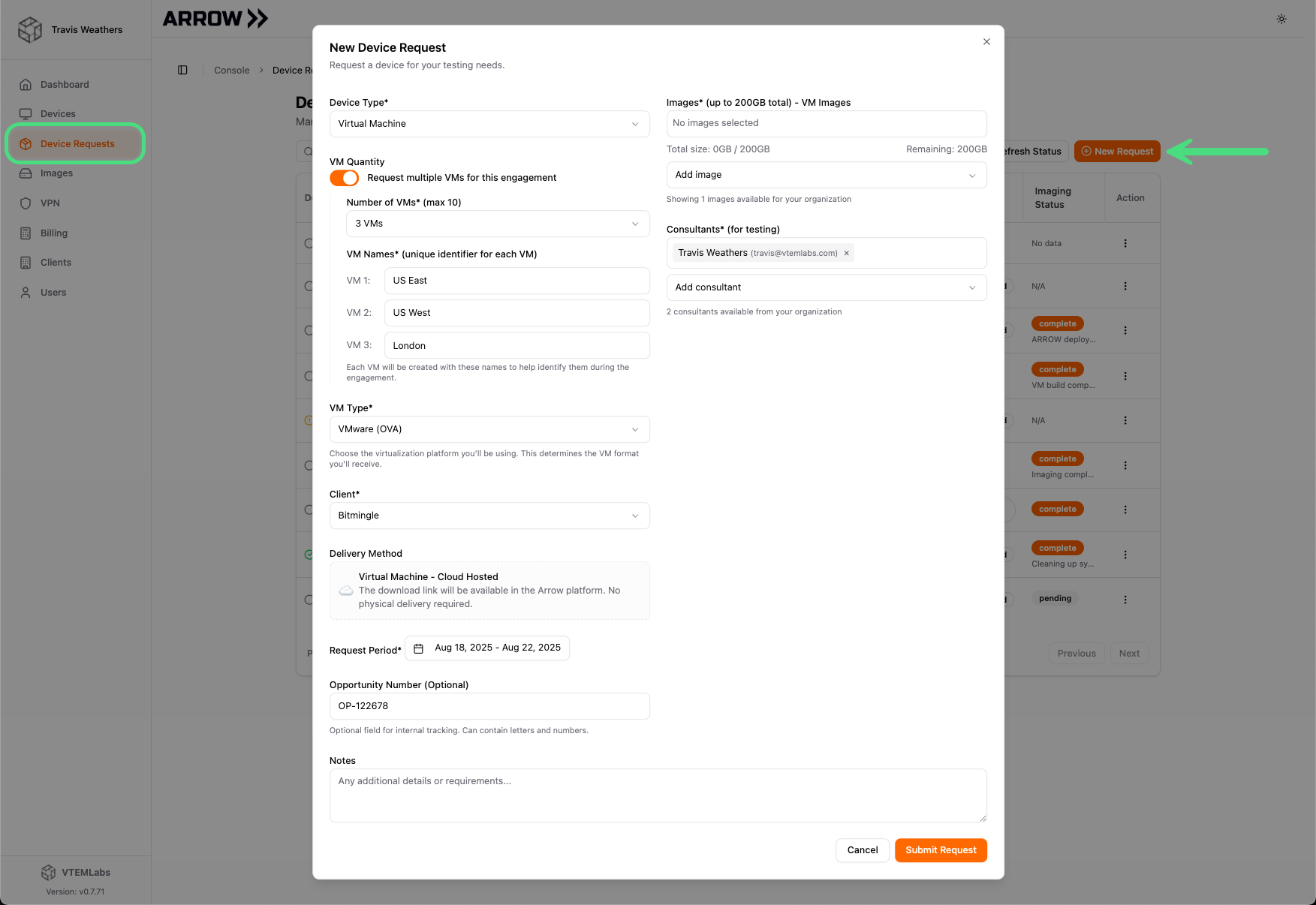 Requesting a Virtual Appliance
You can track the status of your device request within the Device Requests page. Once the status changes to fulfilled, you can get the download link from either the Device Request Details (click the device request) in the Device Requests page, or from the Devices Page.
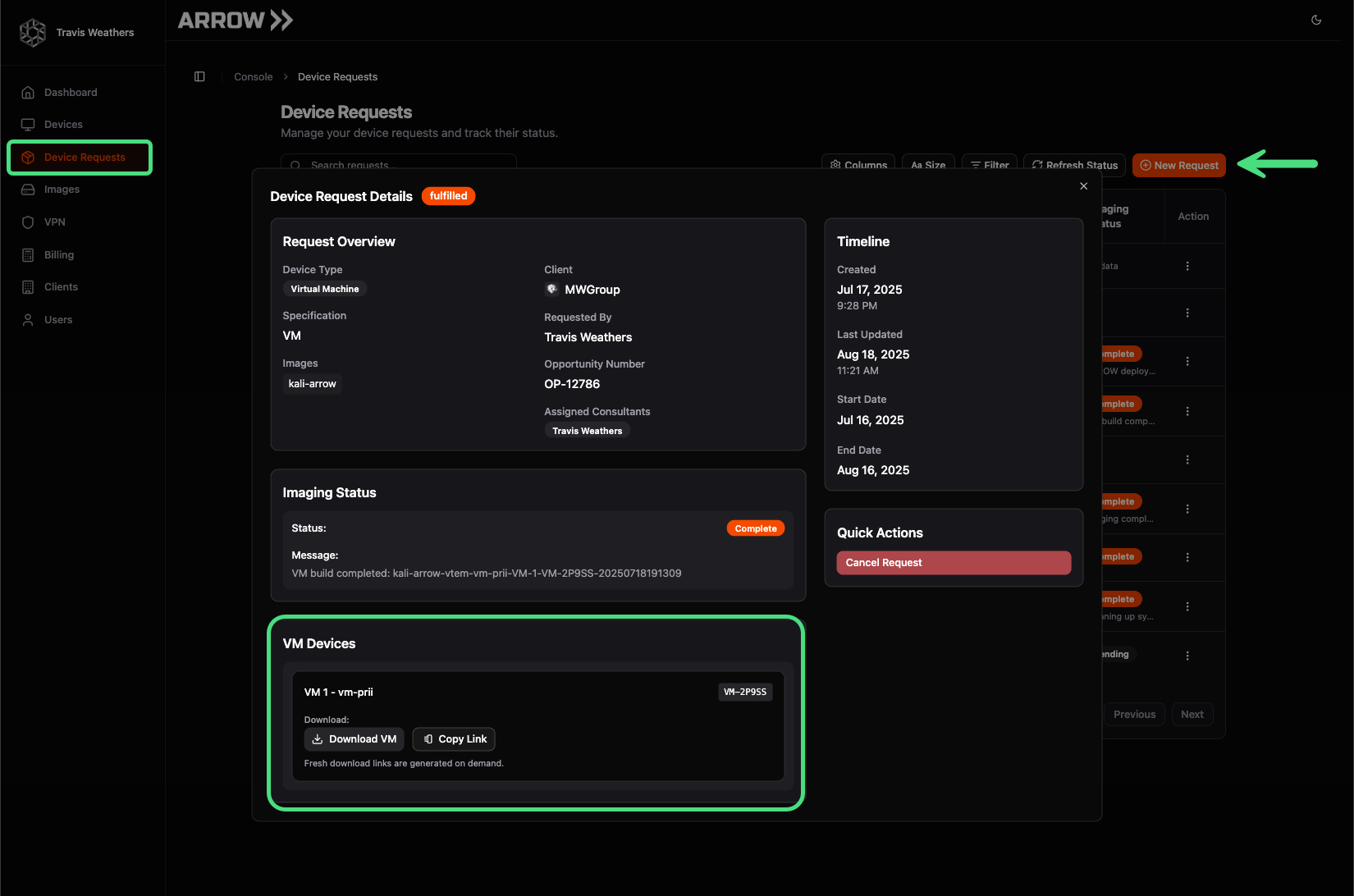 Virtual Appliance Download – Device Requests → Device Request Details
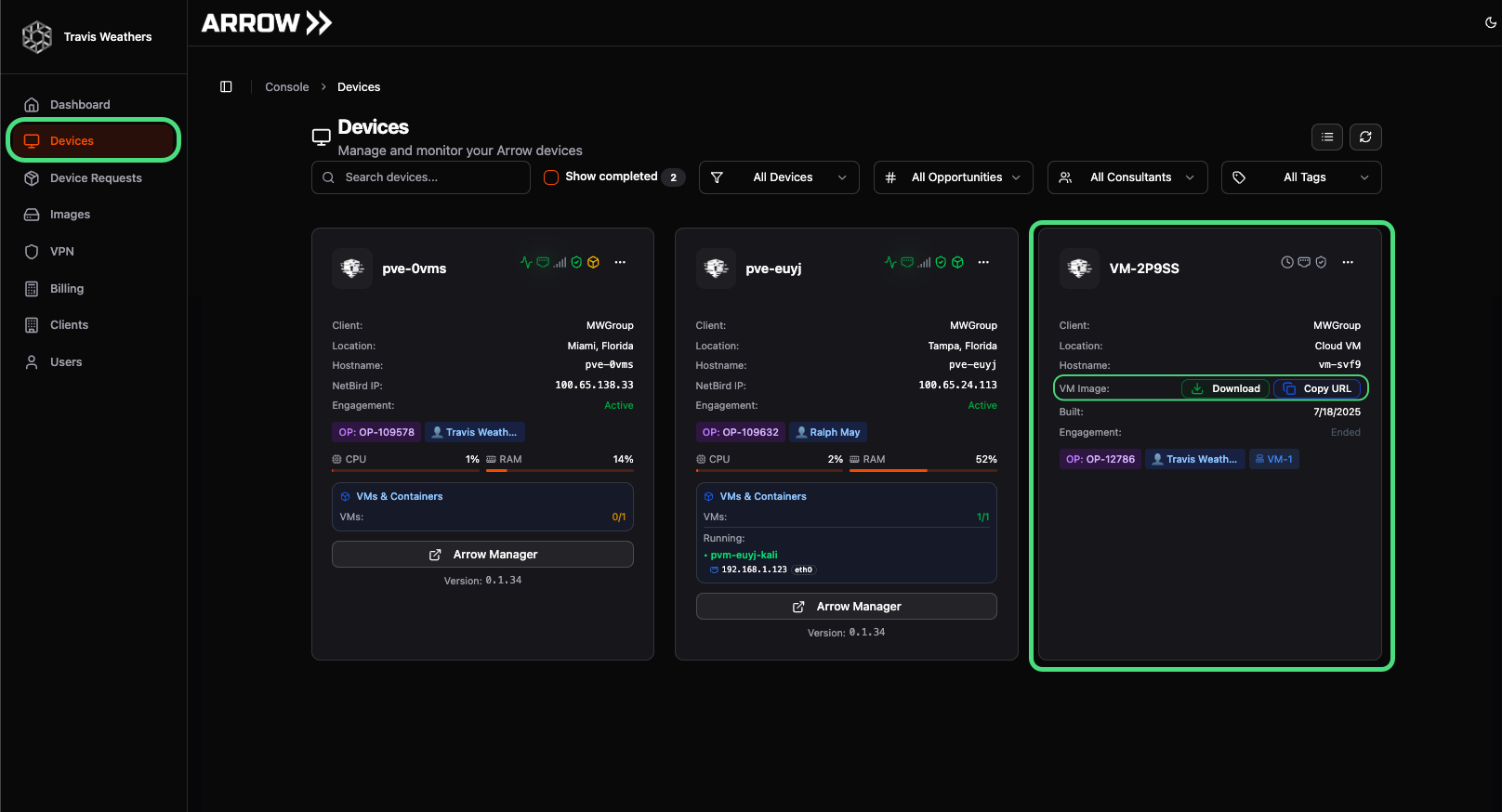 Virtual Appliance Download – Devices View
Extending or Shortening Device Request Dates
Section titled “Extending or Shortening Device Request Dates”If your project is delayed, requires additional testing time, or ends sooner than expected, you can change the request dates at any time from the Devices page.
Click on the Devices tab in the navigation bar, then click the […] button for the device you want to update. Select Edit Request Details to adjust the dates.
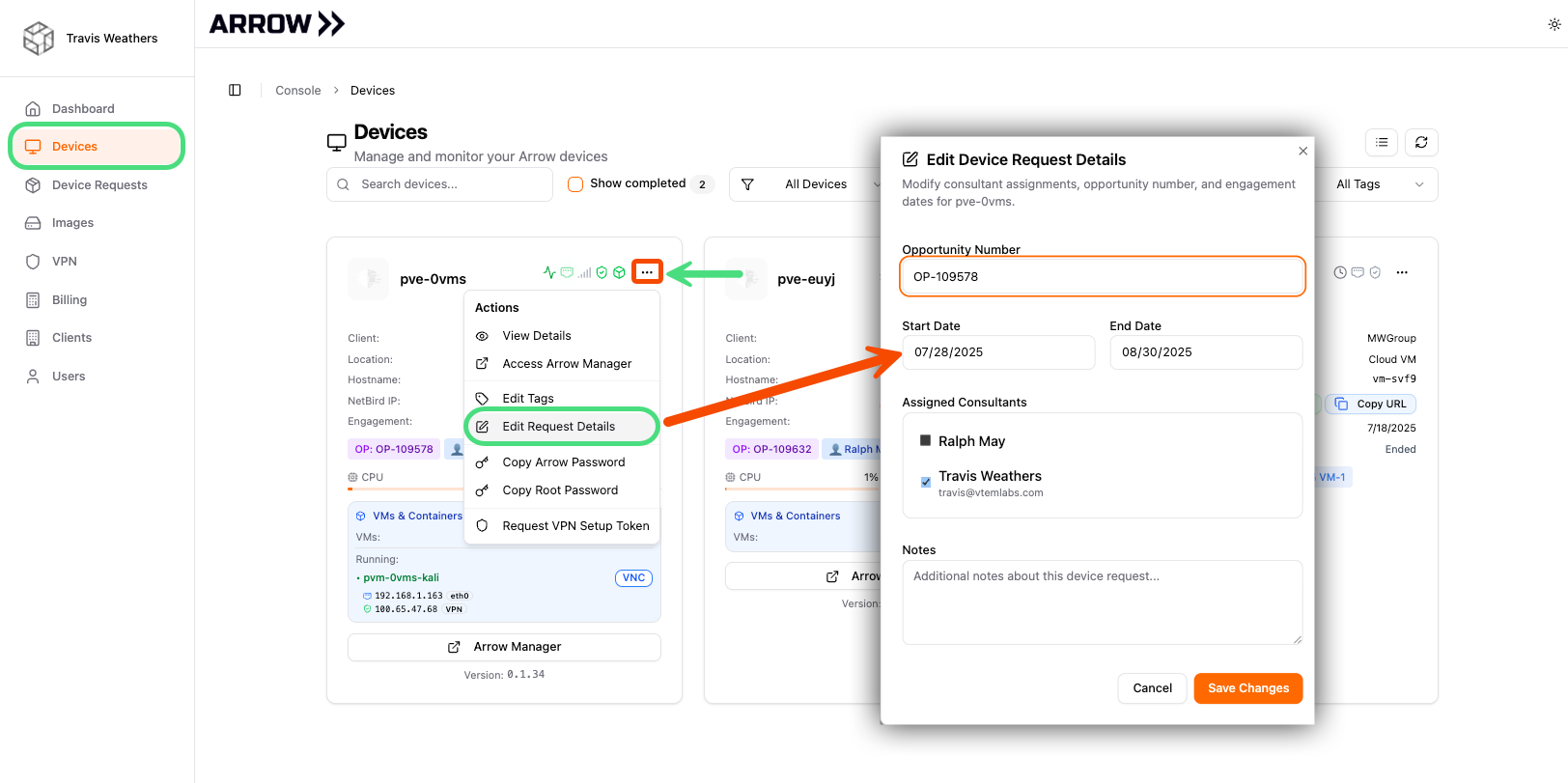 Changing Request Dates